
Here's a video demonstration of this functionality:
To be able to add a new user to your GlassFrog organization, you will need to be an Admin in the organization.
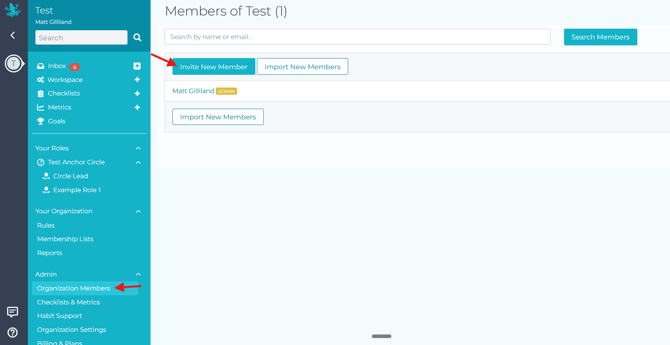
- If you are an Admin within your organization, you will see an "Organization Members" item under the Admin menu. Clicking on this will take you to a list of current members in the organization. Click the "Invite New Member" button.
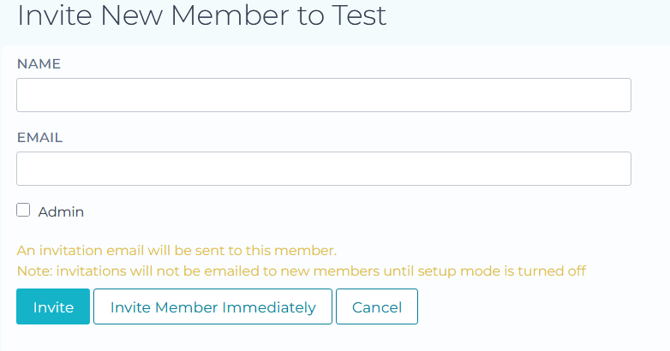
- Add the new member's name and email address, and you can choose to make them an admin as well. The new user will be sent an invitation email to complete the process.

Note that the initial password link expires after 30 days. Should the member not log on to their account and change their password before the 30 days are up, they can request a new link using our "Forgot your password" function.
While in Setup Mode, by default invitations will be held until the organization is launched out of Setup Mode. If you would like to invite a user immediately, an additional option appears for organizations with Setup Mode turned on that allows for this. Instead of "Invite Member," click "Invite Member Immediately."
You may also add members in bulk using the "Import New Members" button.
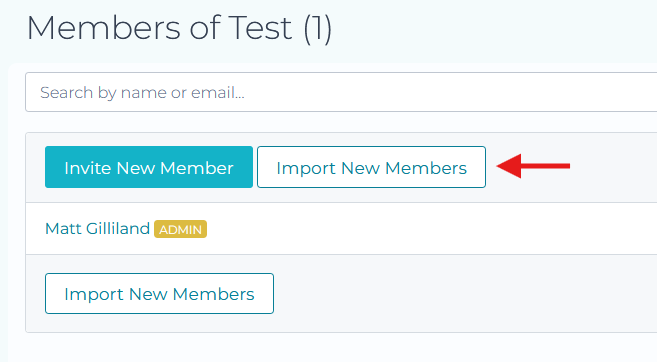
Follow the instructions on the page for formatting a CSV file with the members you would like to import in bulk, and then click "Import Members."