
Prefer video? We have two videos demonstrating how to use Role Templates.
Here's how to use them with Holacracy Governance turned on in the Organization Settings and with Setup Mode turned off:
Here's how to use them with Holacracy Governance turned off in the Organization Settings or with Setup Mode turned on:
If you're duplicating roles, GlassFrog's Role Template feature will effortlessly speed up the process.
To create a role template, your organization needs to have a GlassFrog Premium subscription and you need to have the Admin status in GlassFrog.
- As an administrator of the organization, go to your Admin section in the left-hand sidebar and select 'Organization Settings'. Then go to the 'Features' tab and click on 'Role Templates.'
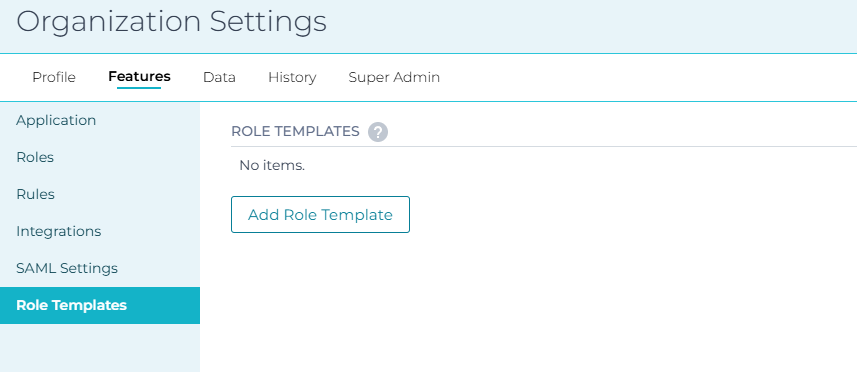
- Click 'Add Role Template.' Fill in the fields you want to show in the template and click 'Save'. The role template is now created.
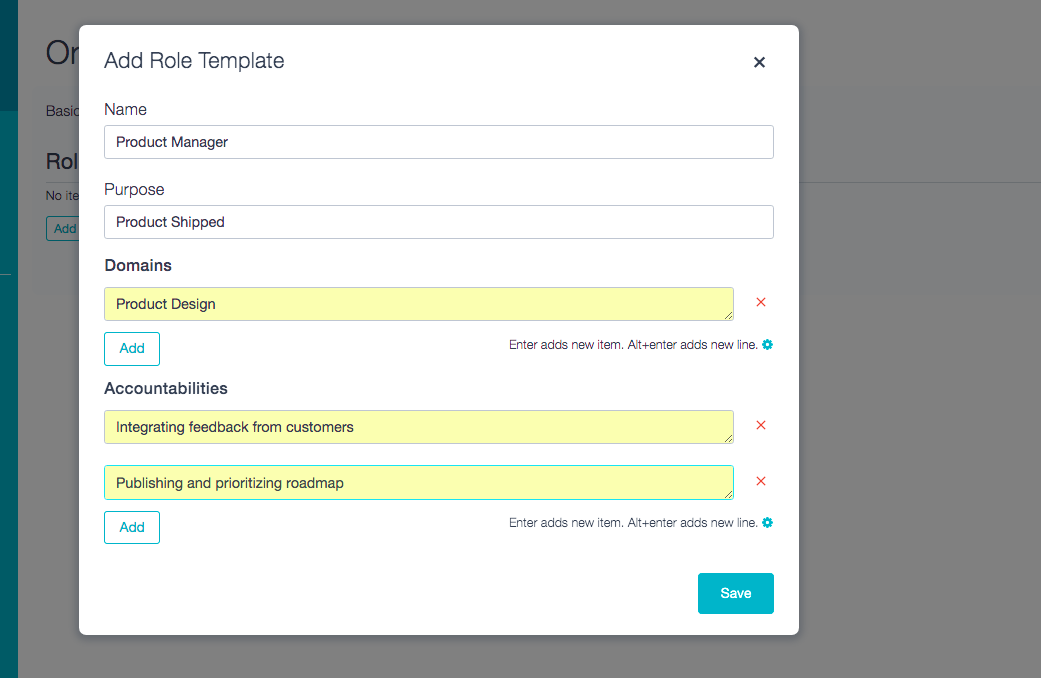
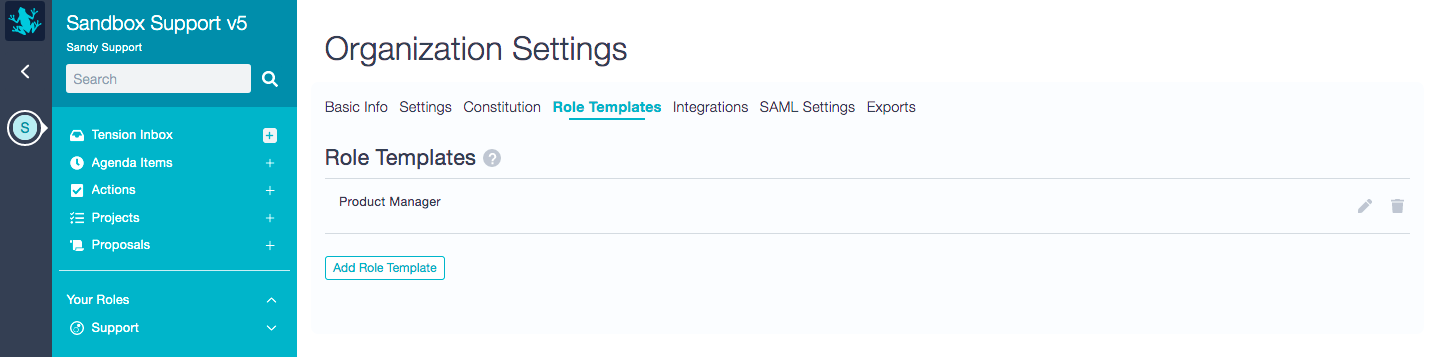
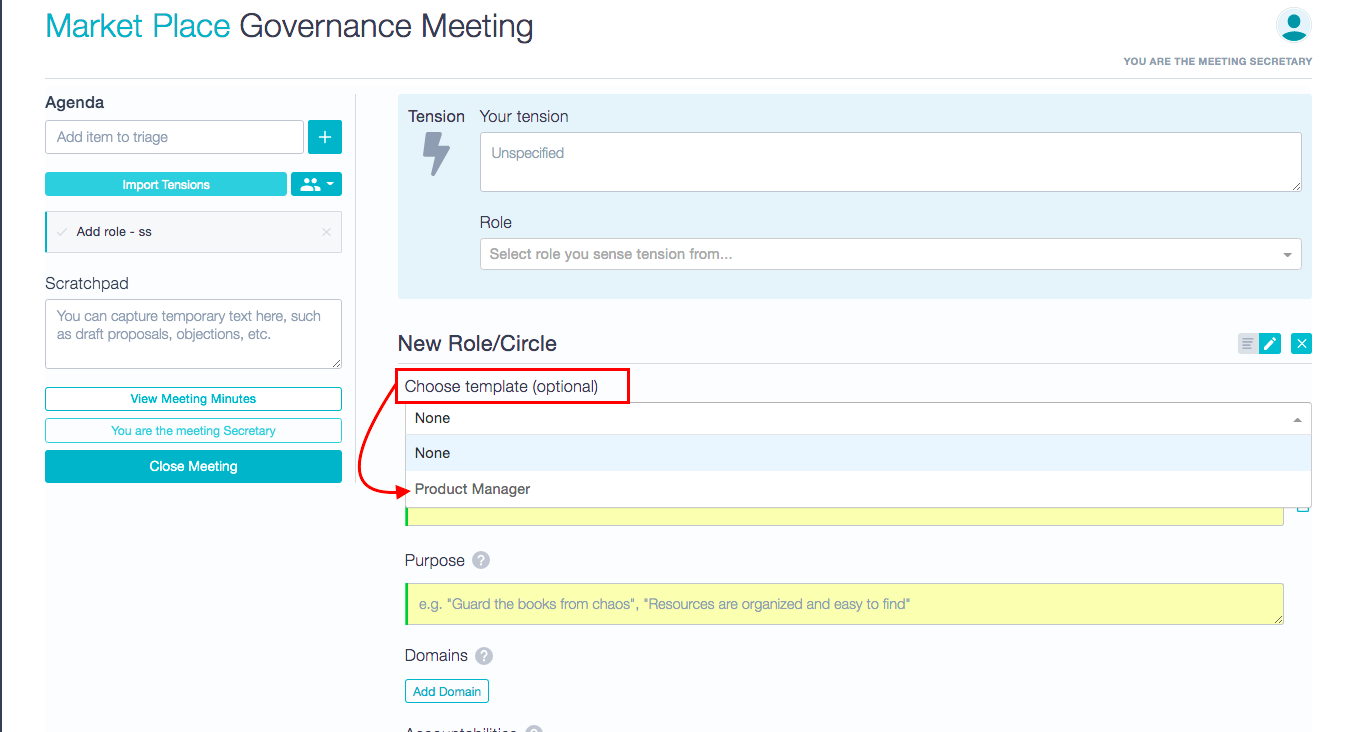
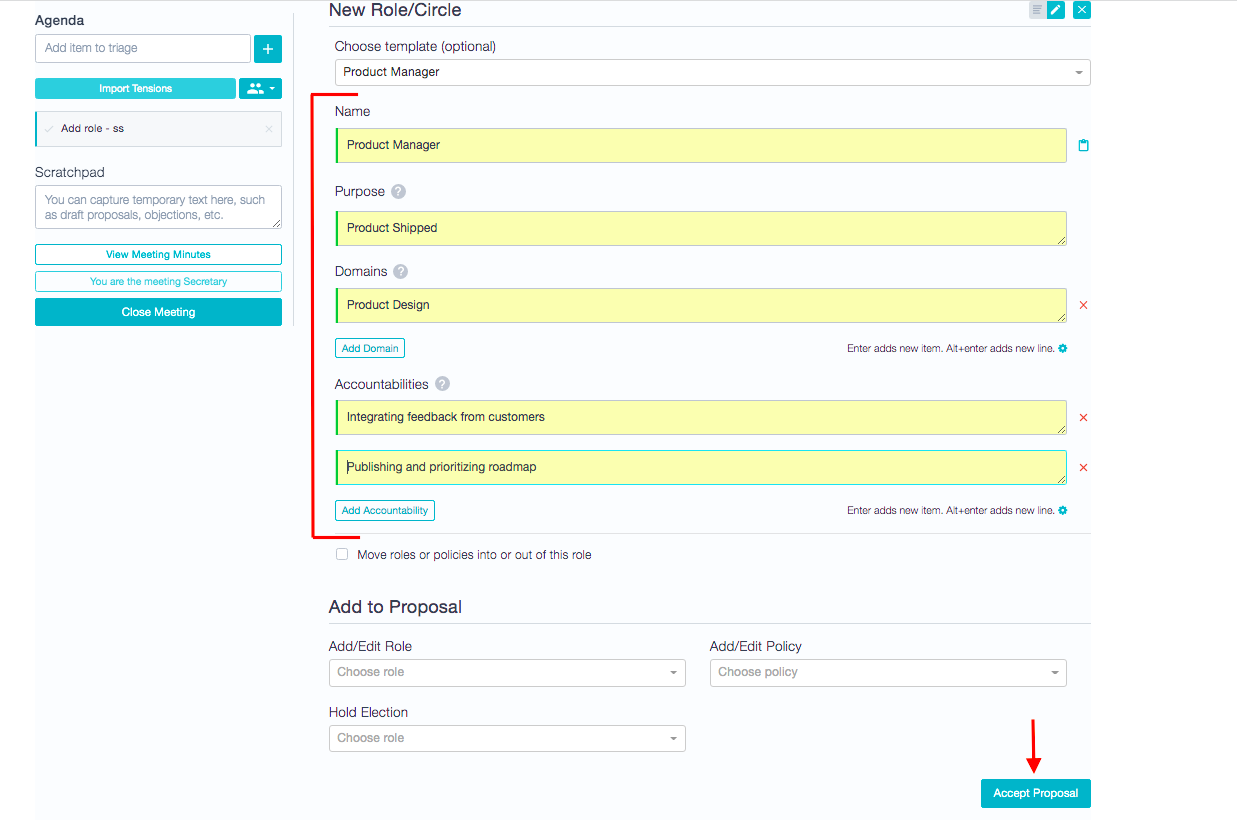
- If Holacracy Governance is turned on in the Organization Settings and the organization is not in Setup Mode, the template may be chosen from a dropdown list when creating a new role in Governance meetings or when crafting a proposal. Doing this will fill in the role's details automatically to match your template. Here's what that looks like:
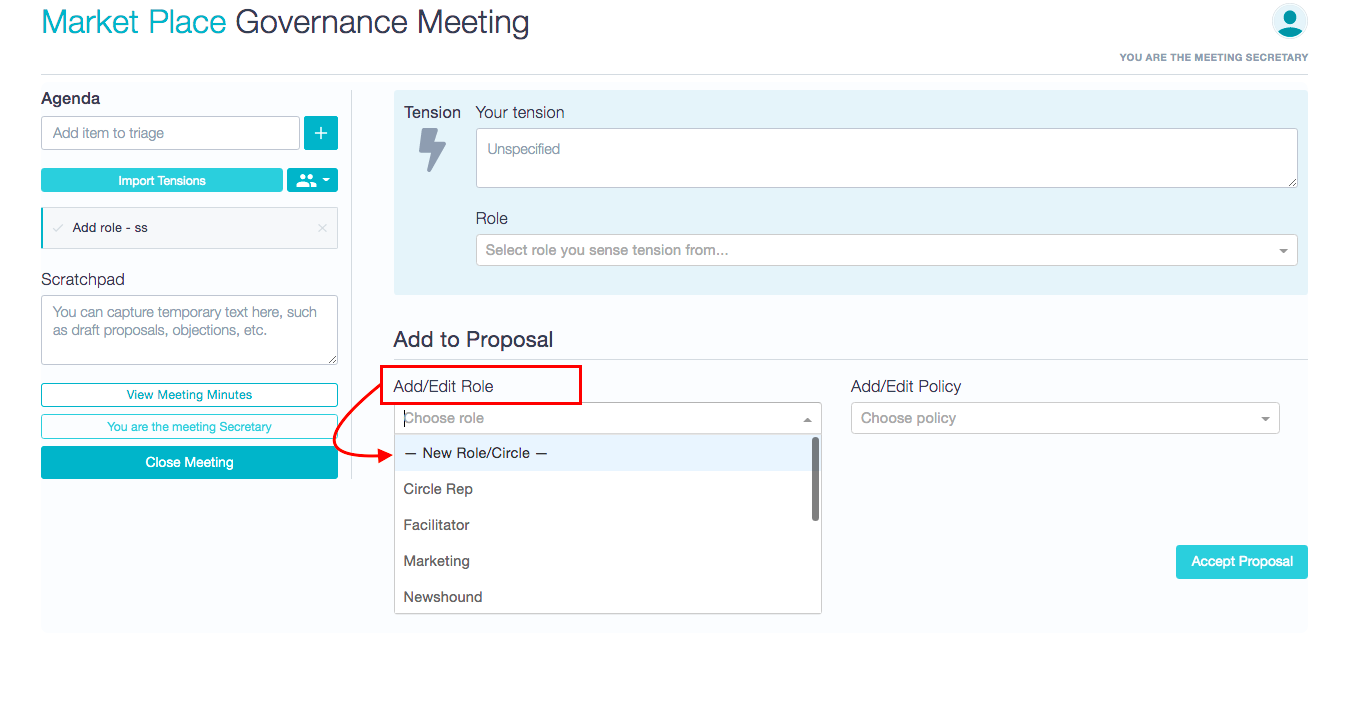
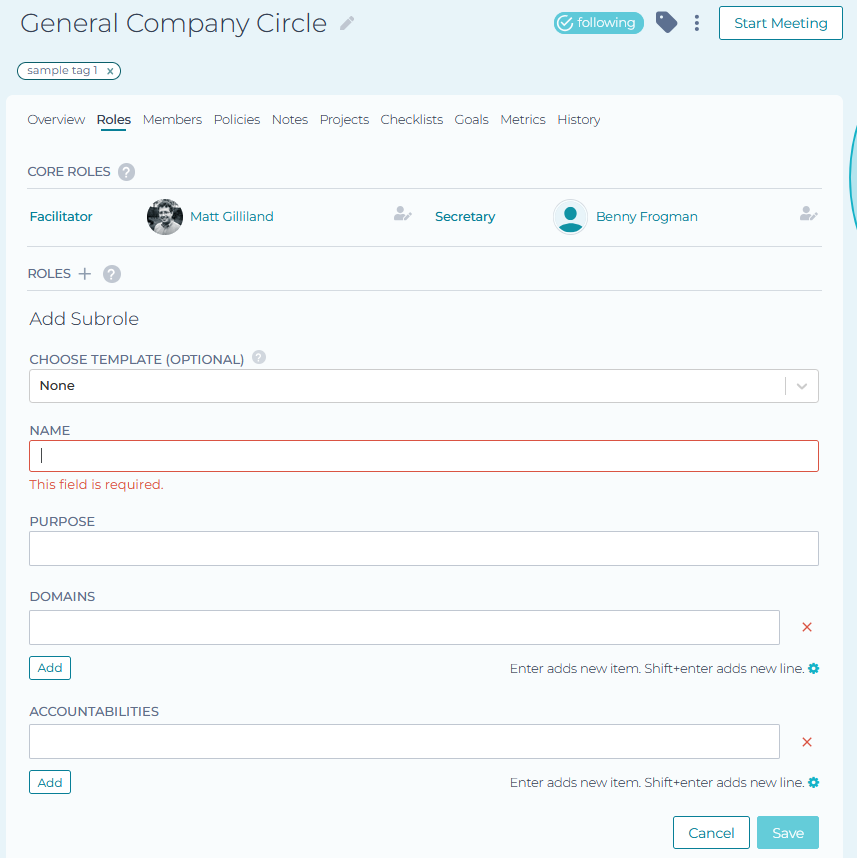
If Holacracy Governance is turned off in the organization or if the organization is in Setup Mode, you can add a role from the Roles tab of any circle page. Click on the plus sign icon next to 'Roles' on that tab, and then choose an available template from the first dropdown, as seen in the screenshot below:
Related Article: How do I duplicate roles in a free organization?