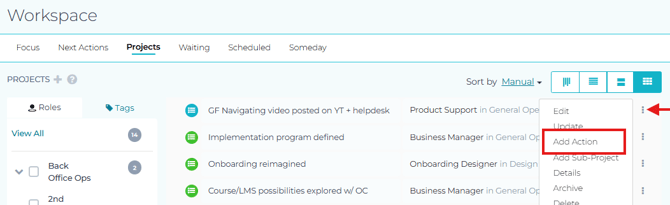
Projects and Actions can be associated with each other, or left independent. Associations can be made from either the Next Actions or the Projects tabs of the Workspace page.
From the Next Actions tab of the Workspace page:
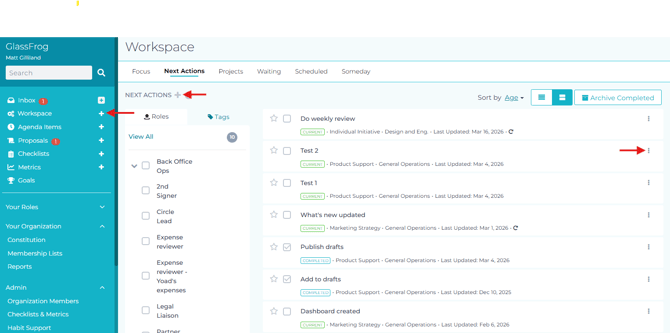
- To add an action to a project, pull up the action's options menu (using the three-dot menu icon next to the action) and click "Edit Action", or create a new action by clicking the the plus sign (+) icon next to 'Workspace' in the left-hand sidebar menu or next to "NEXT ACTIONS" in the heading
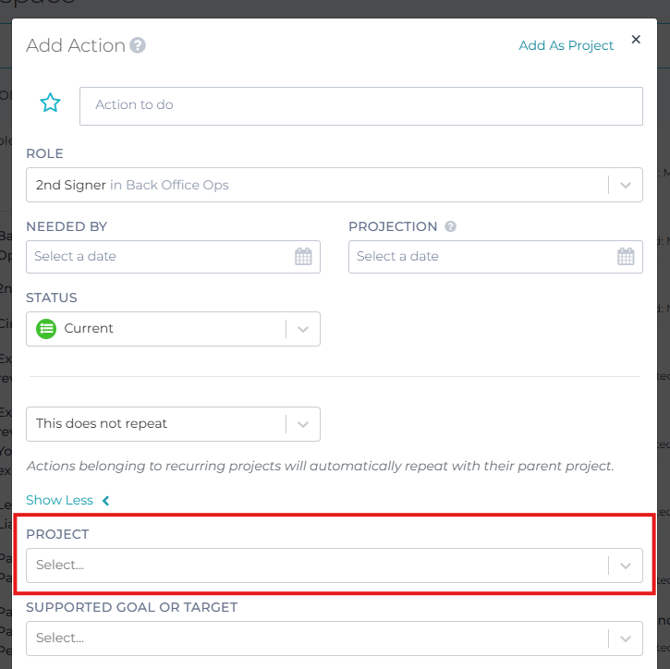
- From there, click "Show More", fill in any details of the action needed and use the "PROJECT" dropdown menu to assign the action to a project of your choice, and then click "Save".
From the Projects tab of the Workspace page:
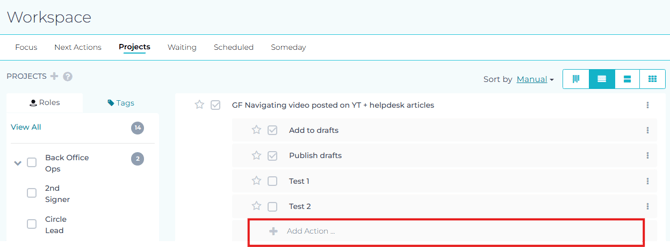
- In the List or Details views of the Projects tab in your Workspace, existing actions associated with a project can be seen as a checklist below the Project. To add a new action to a project, click the "Add Action" field under the project, type in the action you'd like to create, and press enter.
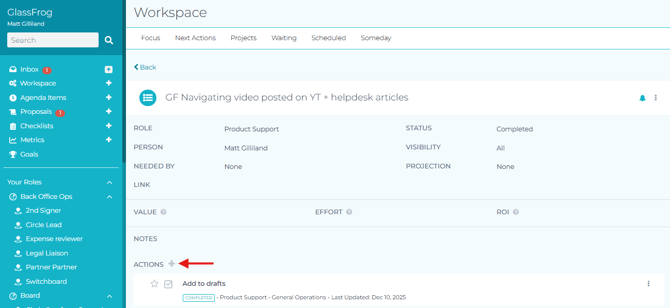
- In the Kanban view of the Projects tab in your Workspace (or the Kanban view of the Projects tab of a role or circle), click on one of your projects to bring up the project page, then click the plus sign (+) icon next to 'ACTIONS' to create a new action to add to that project.
- In the Table view of the Projects tab in your Workspace, pull up the project's options menu (using the three-dot menu icon next to the action) and click "Add Action." Fill in the details of the action, and then click "Save".